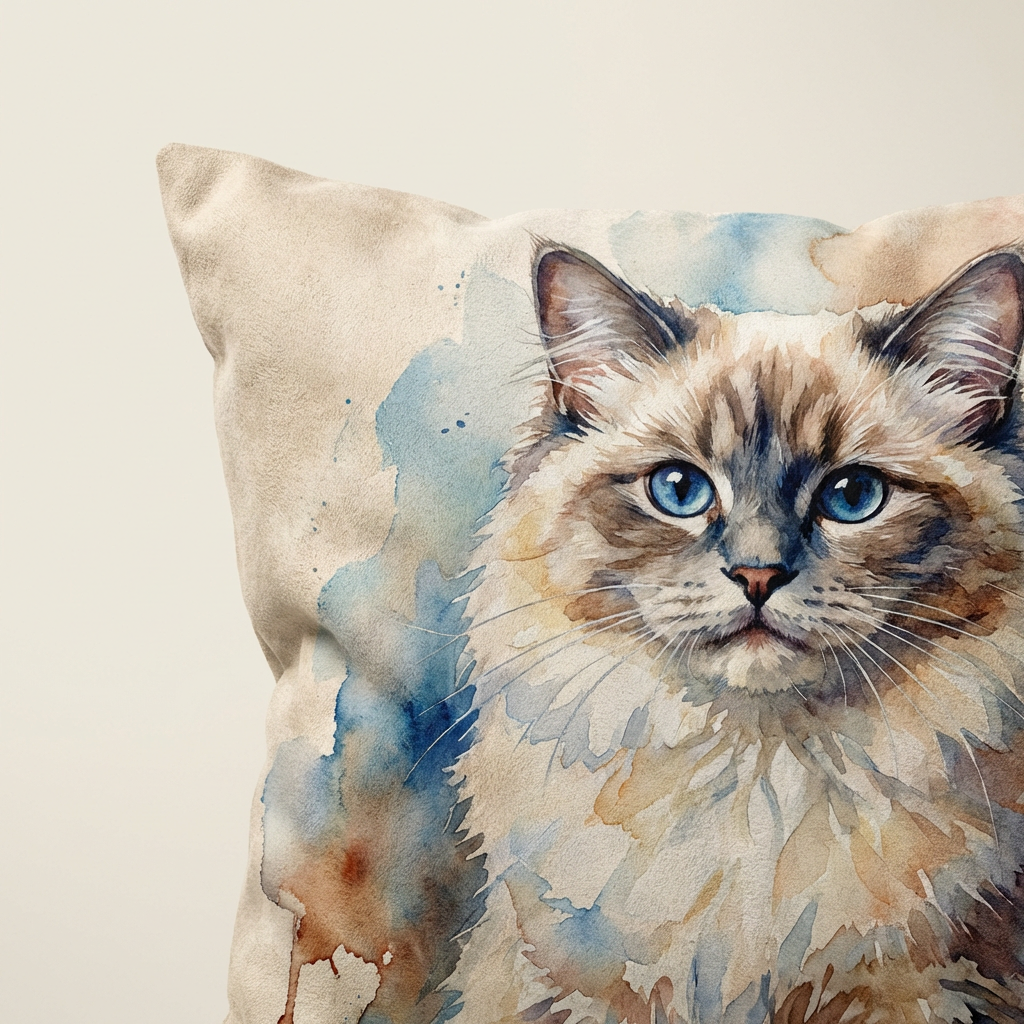
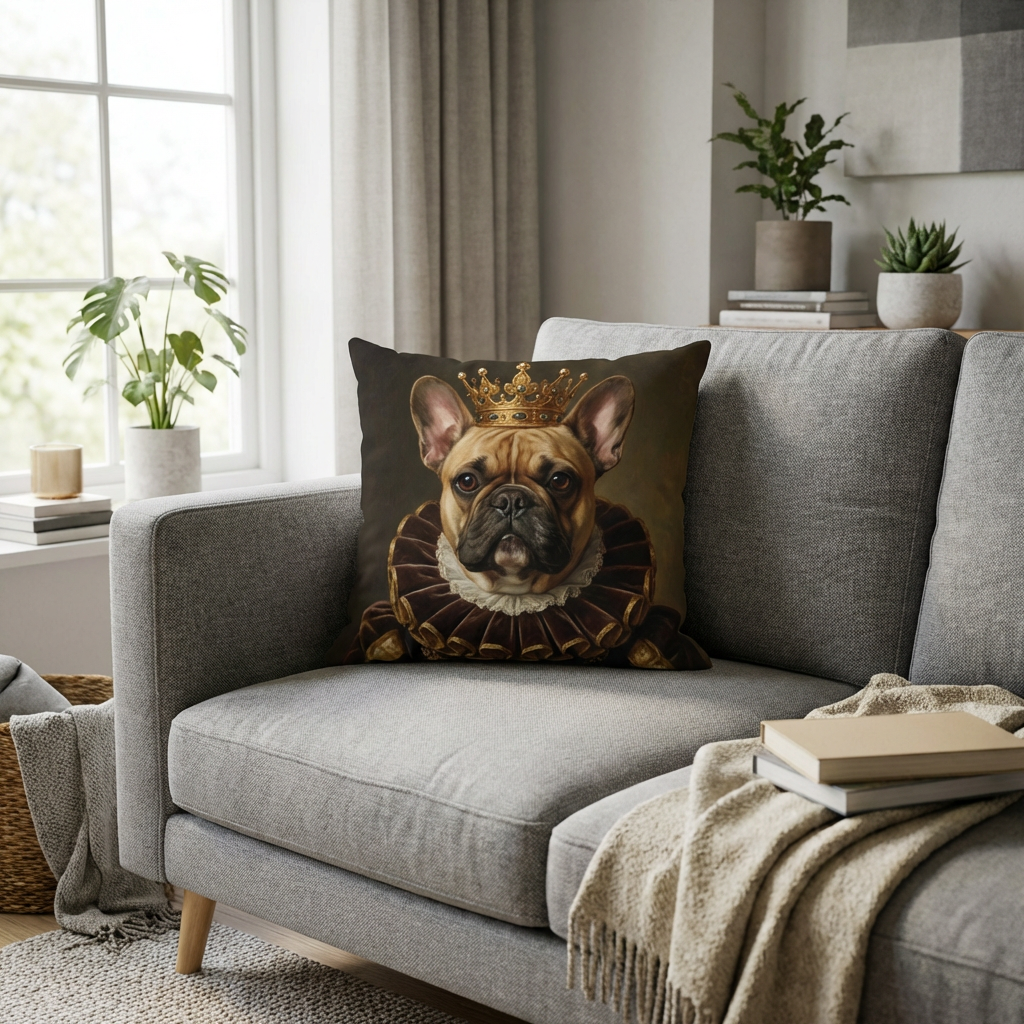
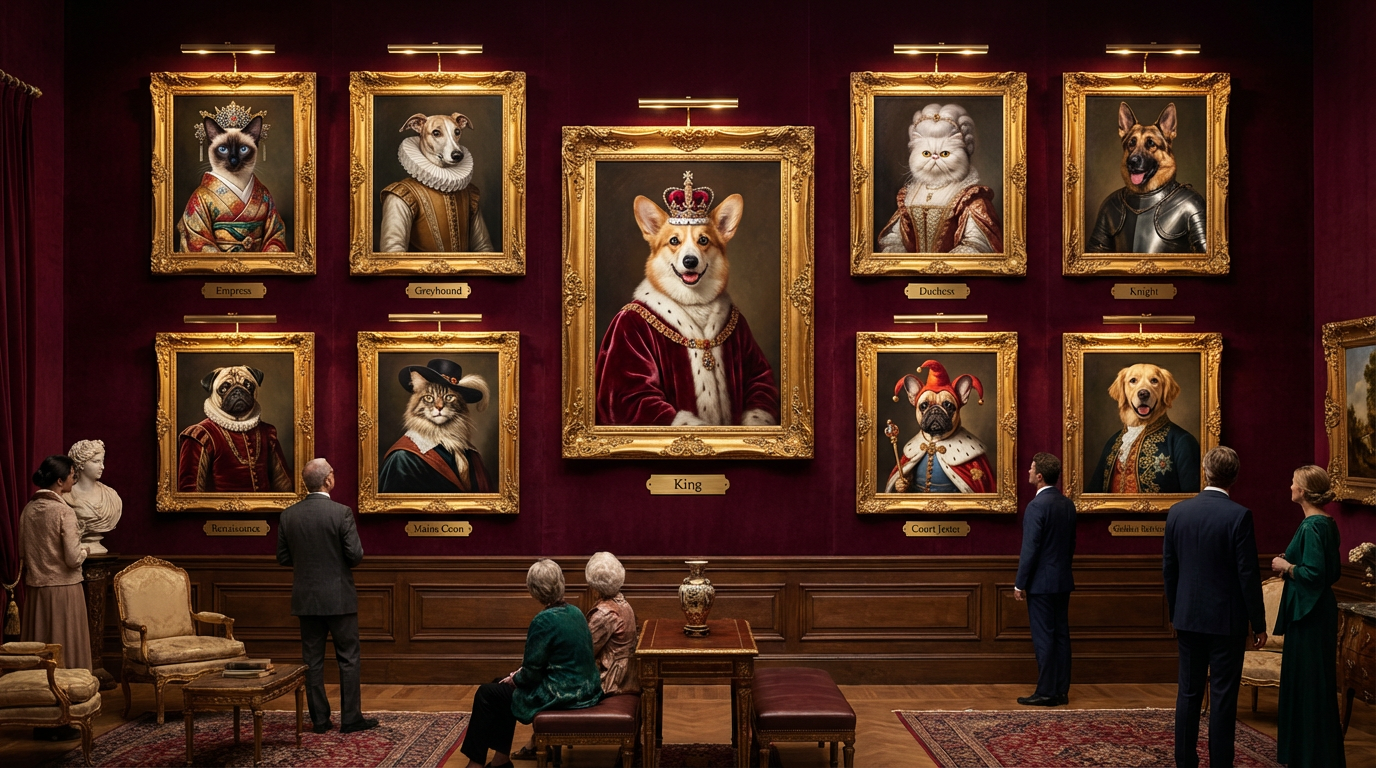
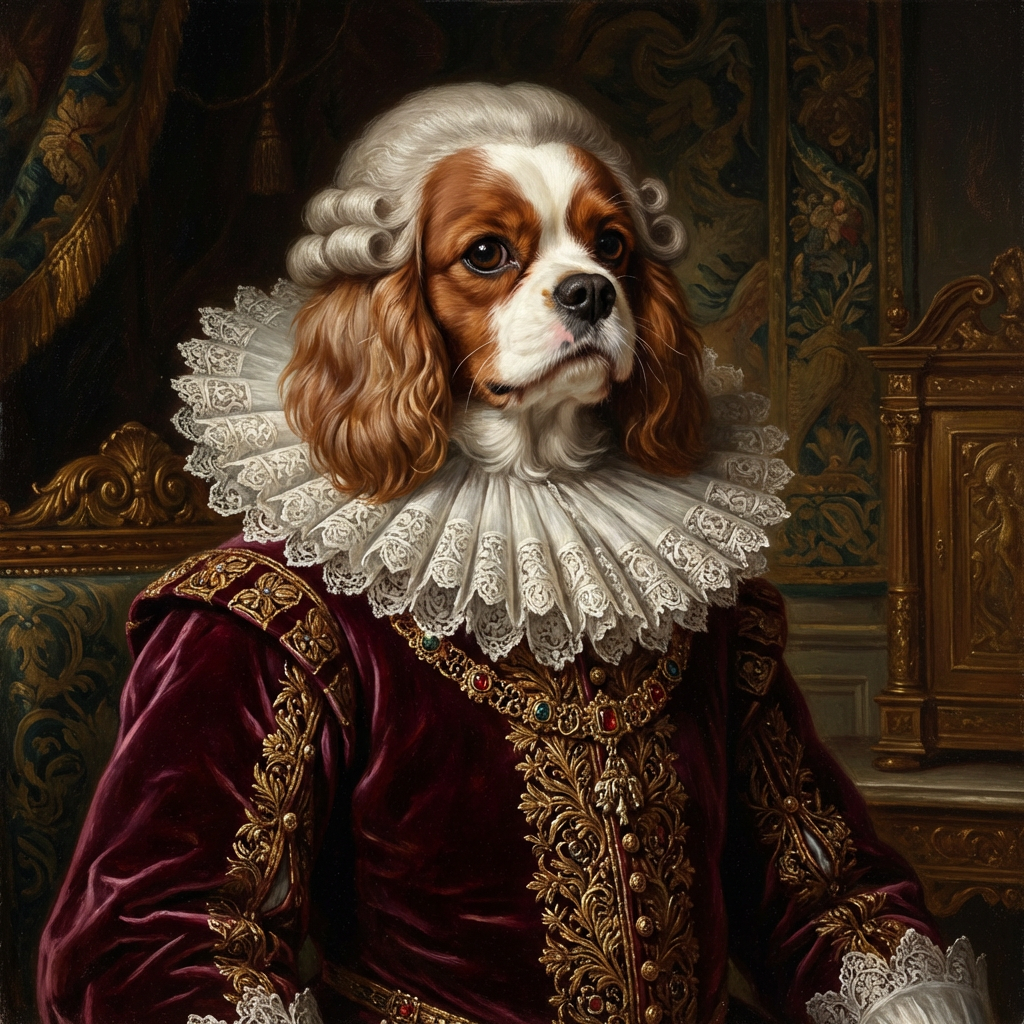
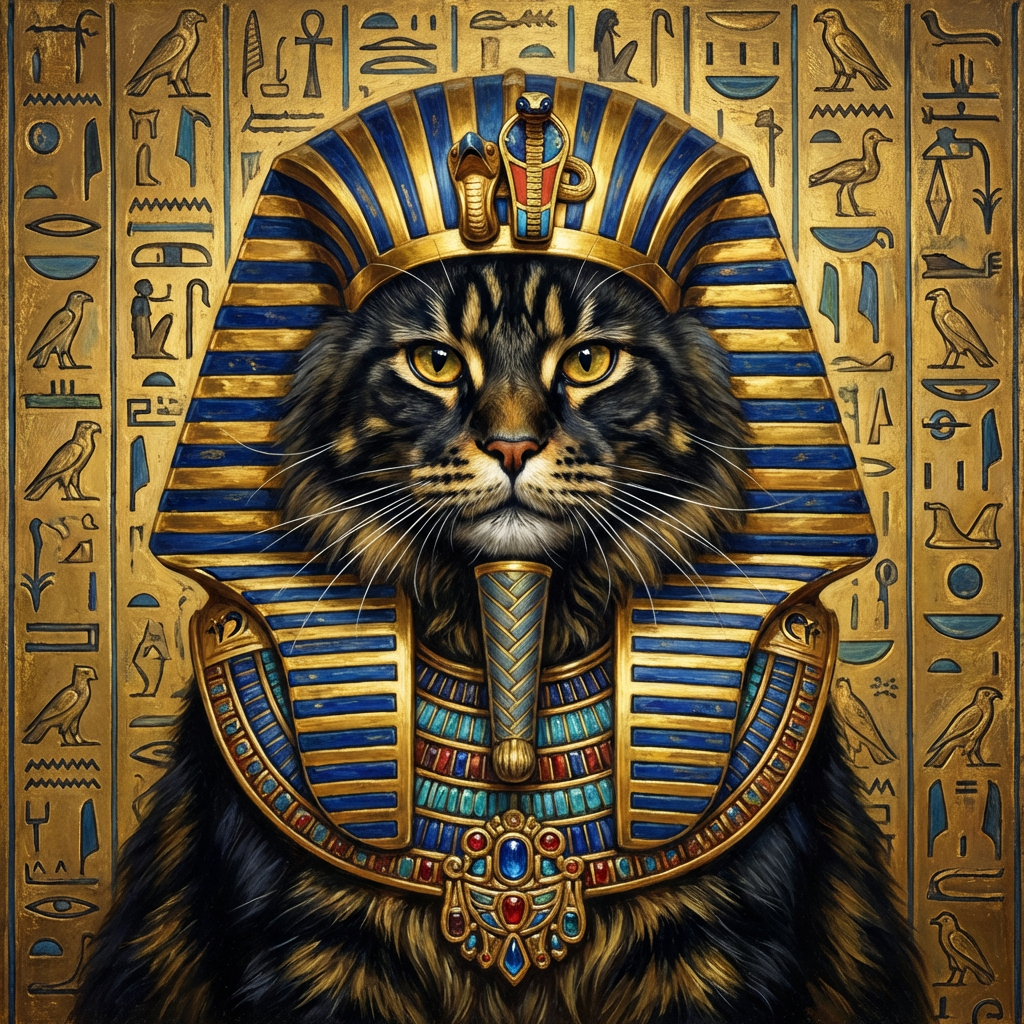
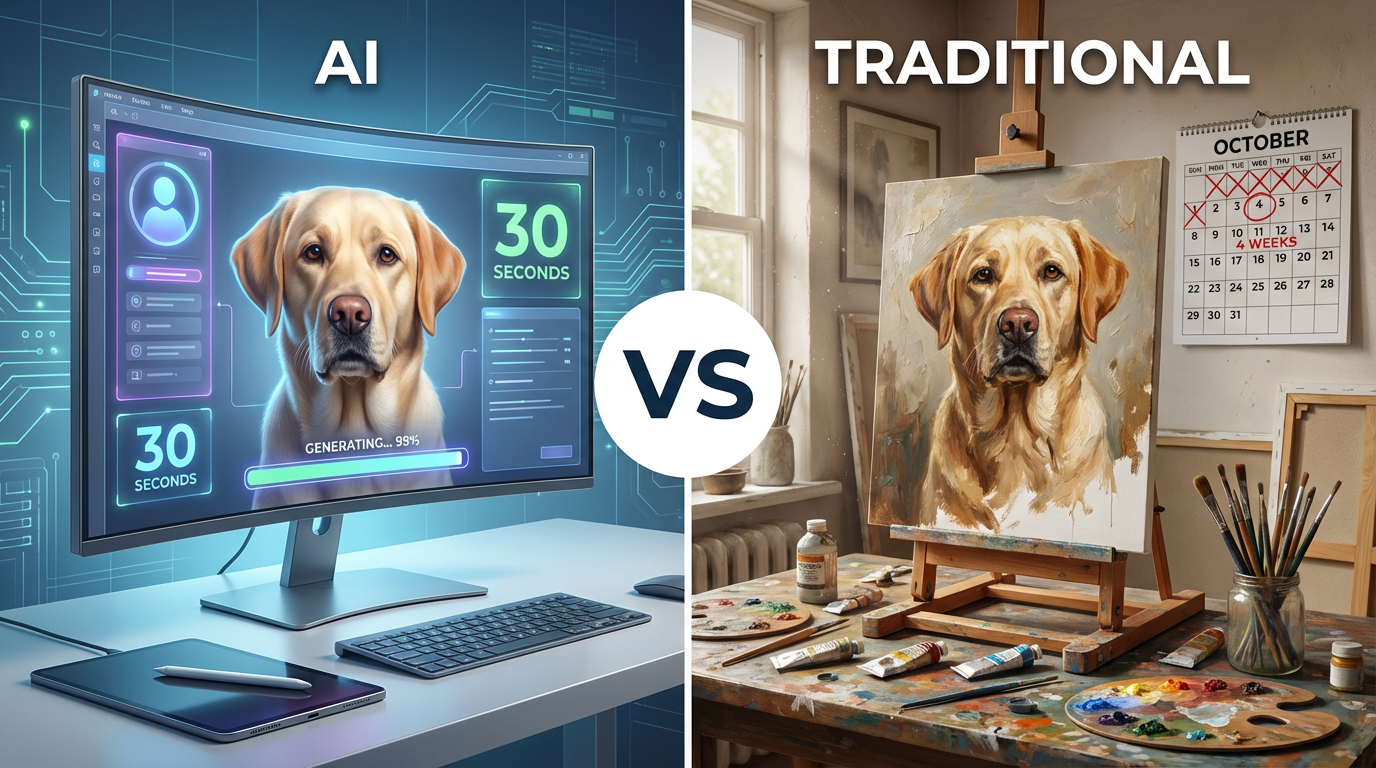
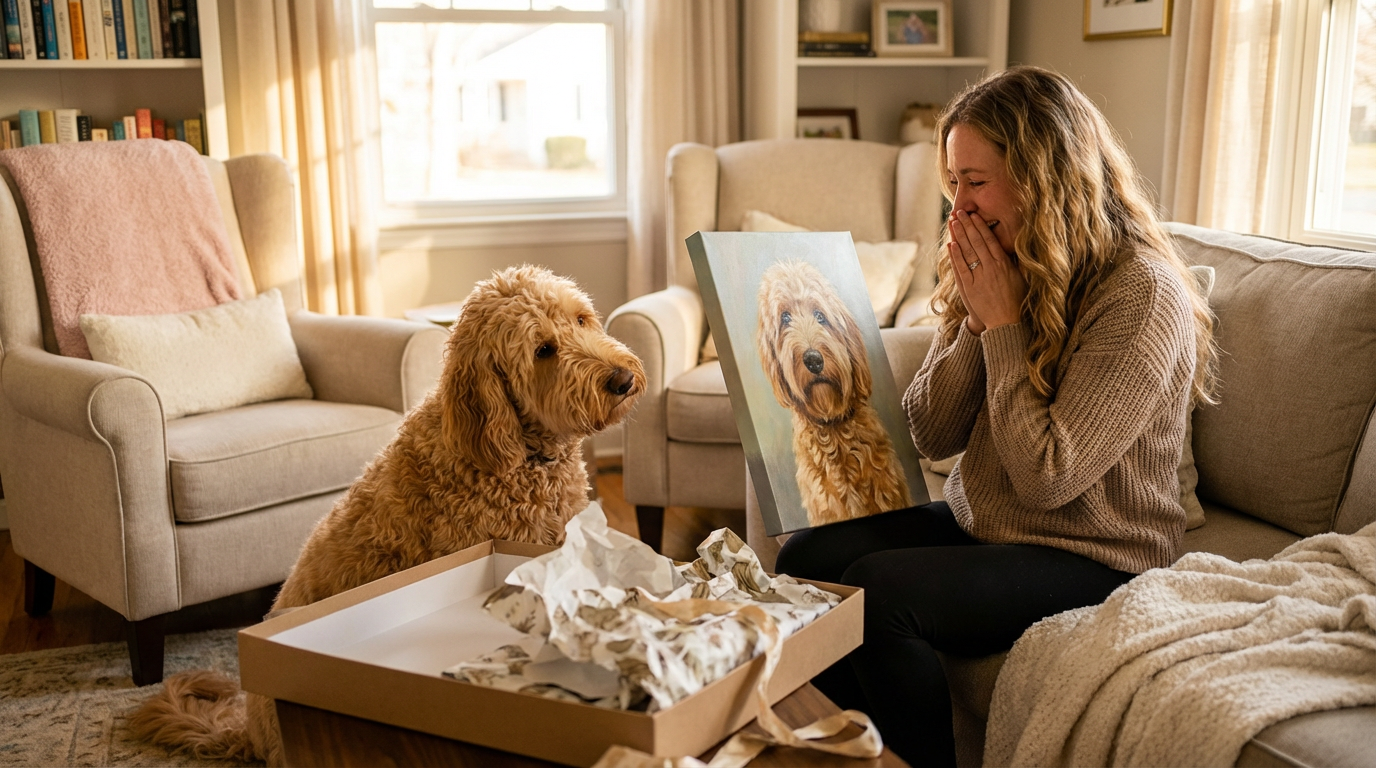
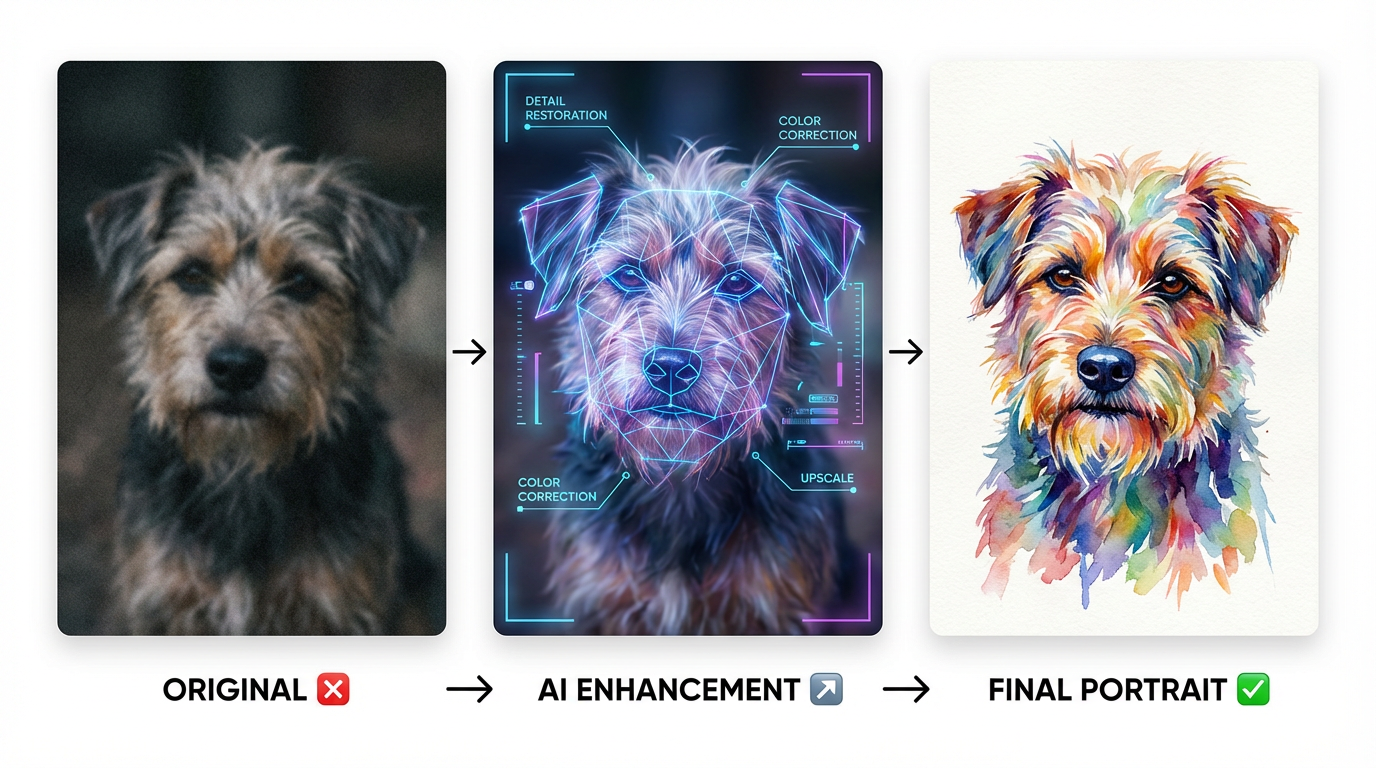
The AI can do a lot. It can sharpen edges, enhance textures, add lighting, and transform a casual snapshot into a stunning painted portrait.
But it can’t invent information that isn’t there. If your pet’s eyes are closed, or the face is half in shadow, or the photo is shaking — the portrait will reflect that. Great source material produces great portraits.
This guide covers the 7 most important things you can do before you press the shutter button to get a portrait-worthy photo of your pet.
(Already have a blurry photo and need to work with what you’ve got? Read our guide to turning bad photos into great portraits →)
Why the Source Photo Matters
AI portrait generation works by analyzing your pet’s features — the shape of their eyes, the texture of their fur, the angle of their ears — and reimagining those features in the selected art style.
The more clearly those features appear in the original photo, the more detail the AI has to work with, and the more accurate and striking the final portrait will be.
Think of it like giving directions: the clearer your starting point, the better the destination.
Tip 1: Prioritize the Eyes
The eyes are the most important element of any portrait.
In human portraiture, the saying goes: “if the eyes aren’t sharp, nothing else matters.” The same is true for pets. Eyes convey personality, emotion, and life — and they’re the first thing a viewer looks for.
What to do:
What to avoid:
Tip 2: Use Natural Light — Never Flash
Flash creates harsh, flat lighting that washes out fur texture and often produces red-eye. Natural light — especially soft, indirect light from a window — is dramatically better.
The best setup:
What to avoid:
Tip 3: Get Down to Their Level
The most common mistake in pet photography is shooting from human standing height — which produces a portrait that looks down at your pet. This makes them look small, and you lose the connection that makes portraits compelling.
What to do:
Tip 4: Fill the Frame with Their Face
A pet portrait works best when the subject is the whole story. That means your pet’s face should fill most of the frame — not be a small subject in the center of a large background.
Composition guide:
AI portrait tip: When you upload to PixPawAI, the tool crops to a square before generating. A close-up face shot works best with this format — wide landscape shots with a small pet lose detail in the cropping step.
Tip 5: Catch Them in a Calm Moment
Blur is the enemy. And blur is most common when your pet is moving — which, for dogs especially, is almost always.
When to shoot:
Technical note: Most phone cameras have a “burst mode” (hold the shutter button) — use this when your pet is in a calm-but-slightly-active state. Review the burst and pick the sharpest frame.
Tip 6: Choose a Simple Background
A cluttered or busy background competes with your pet for visual attention. For AI portraits, a simple background also gives the algorithm a cleaner signal about what the subject is.
Best backgrounds:
Avoid:
Tip 7: Capture Their Characteristic Expression
Every pet has a “signature look” — the expression that makes you say “that’s them, exactly.” A portrait that captures that expression is one you’ll look at for years.
How to get the shot:
The AI portrait will amplify whatever expression exists in the source photo. A photo where your dog looks noble and thoughtful will produce a more stunning Renaissance portrait than one where they look confused.
Photo Checklist Before You Upload
Use this before submitting to PixPawAI:
- [ ] Pet’s eyes are open, visible, and in focus
- [ ] Natural light, no flash
- [ ] Camera at pet’s eye level
- [ ] Pet’s face fills at least 40% of frame
- [ ] Minimal background clutter
- [ ] Photo is sharp (not motion-blurred)
- [ ] Pet’s characteristic expression is captured
Check 6/7 or more, and you’re likely to get a portrait you’ll love.
What If You Only Have Imperfect Photos?
If your best photo is still blurry, dark, or taken from an awkward angle — don’t give up. PixPawAI’s AI enhancement step often compensates for imperfect source material better than you’d expect.
Read our full guide to working with blurry or low-quality pet photos →
Ready to Create?
Once you have a photo you’re happy with, the portrait takes 30 seconds.
Upload your photo at PixPawAI.com →
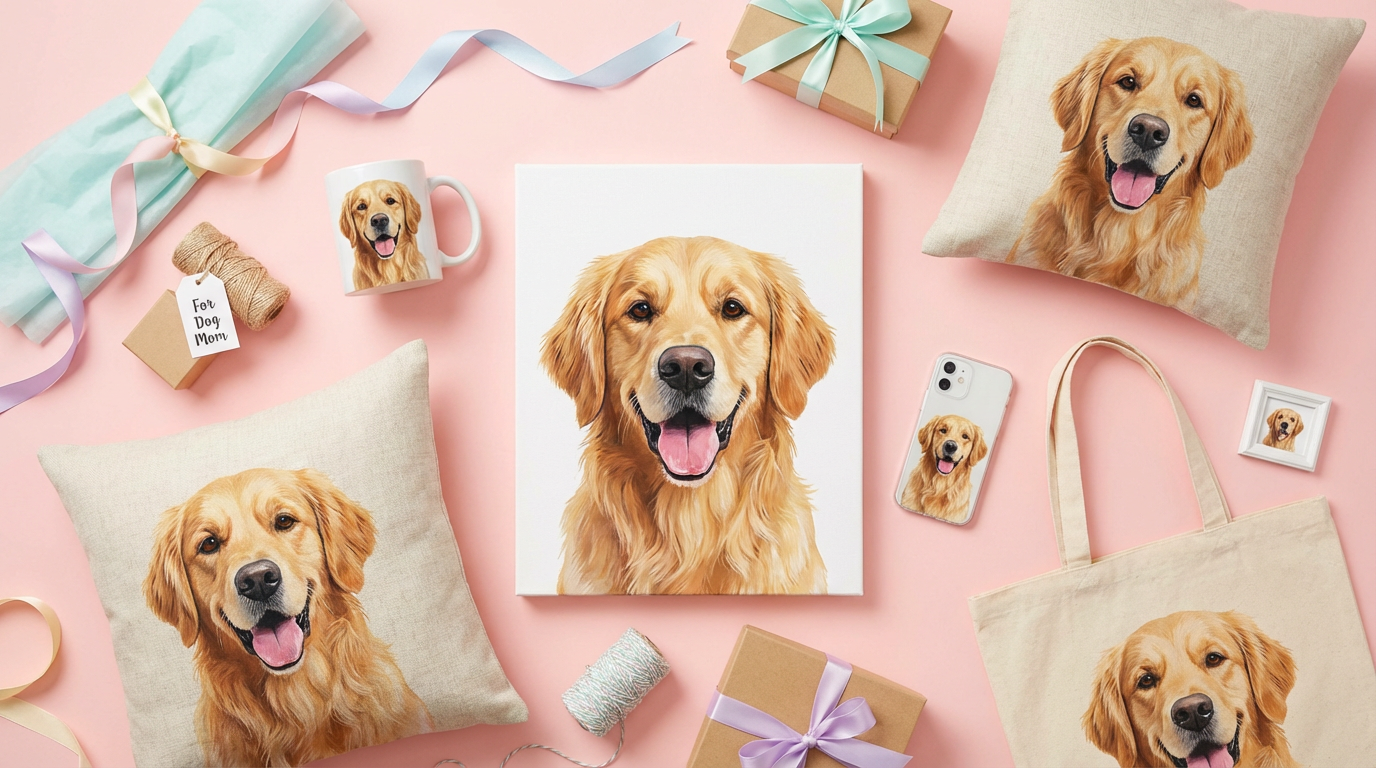
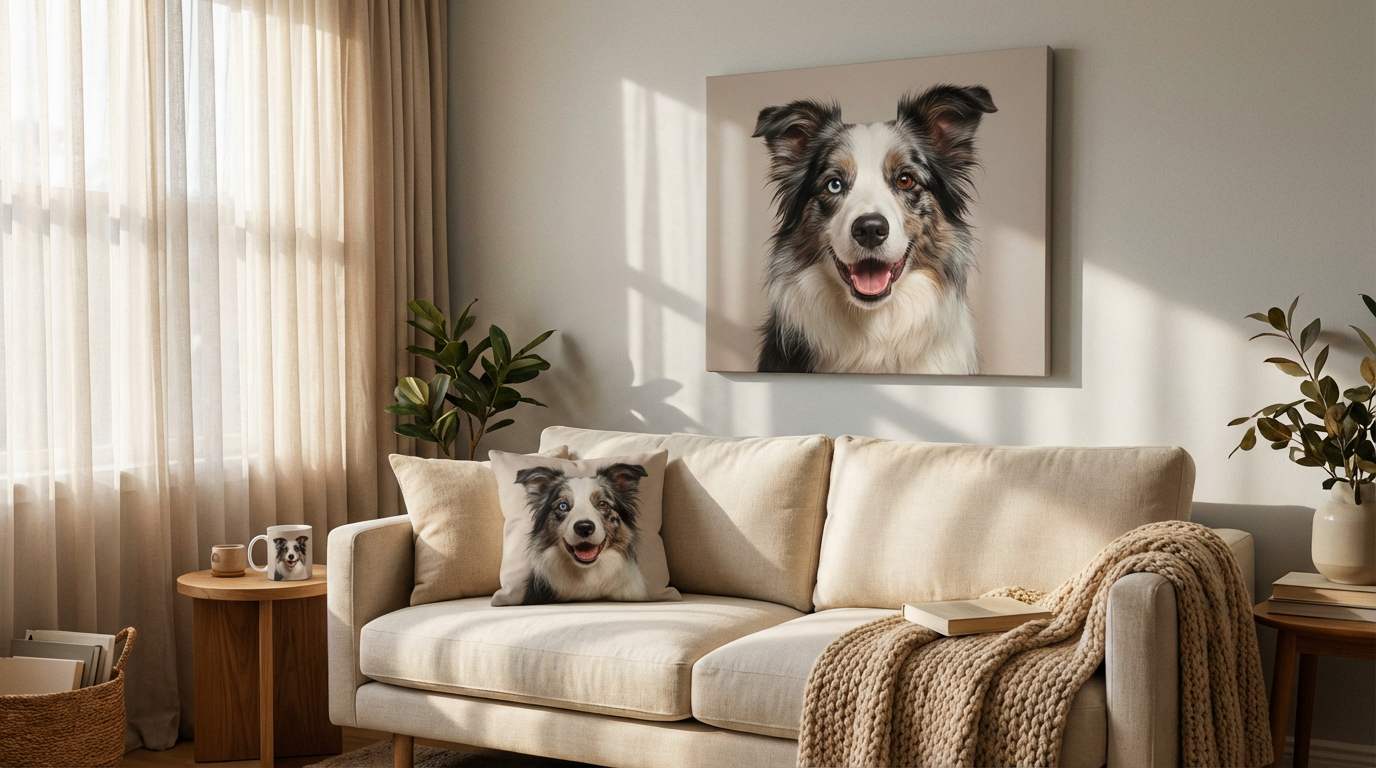
Choose from 8 artistic styles, preview for free, and order a physical canvas, pillow, or mug with your favorite result.
Related Reading: